
Restore a deleted material from the Archive
Deleting a material in Class Spot doesn’t destroy it straight away. Boards, Study Guides, games, Flash Cards decks and uploaded files all go to the Archive first, and you have 30 days to change your mind.
Where the Archive is
Archive is its own entry near the top of the sidebar, just below Schedule — not a folder inside Materials.
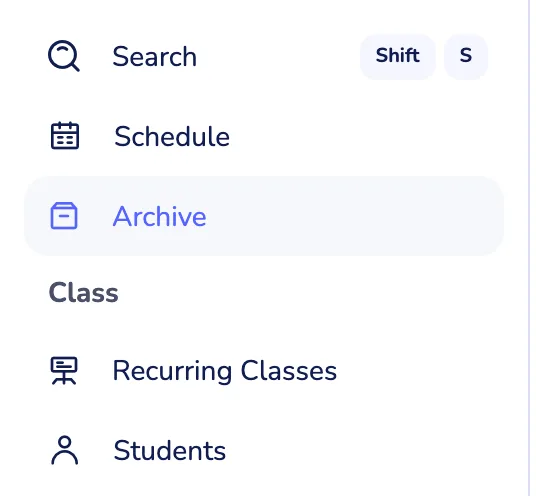
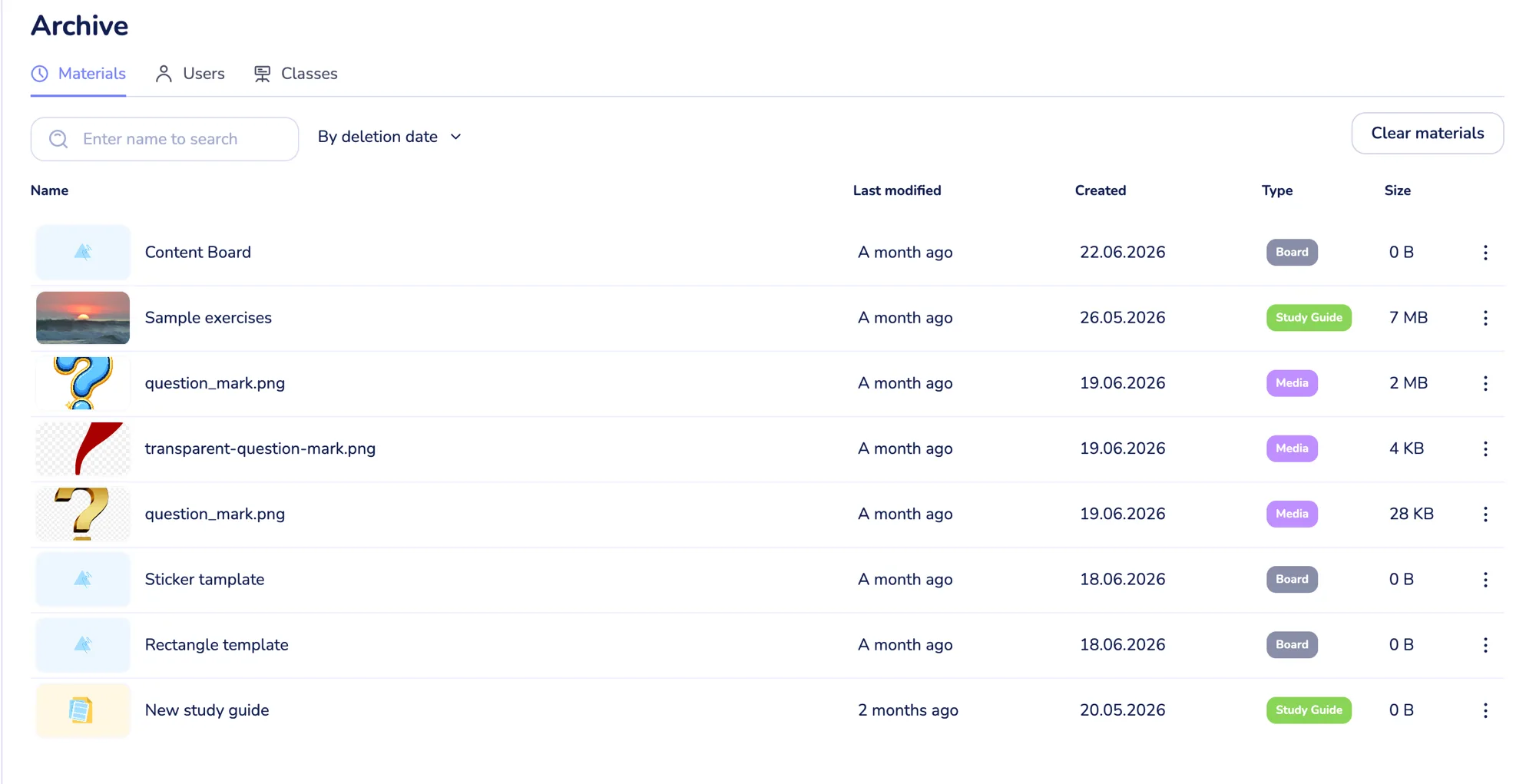
It opens a page with three tabs — Materials, Users and Classes. Deleted boards, Study Guides, games, decks and files are all on the Materials tab.
The Archive is available from the Solo Pro plan up. On Free the entry is still in the sidebar, but clicking it opens an upgrade prompt instead — there’s more on what that means at the end of this article.
Restore a material
- Open Archive from the sidebar and stay on the Materials tab.
- Find what you’re looking for. Type into Enter name to search, or use the sort control — it’s set to By deletion date by default, so the most recently deleted items are at the top.
- Click the ⋮ button at the end of the row.
- Choose Restore.
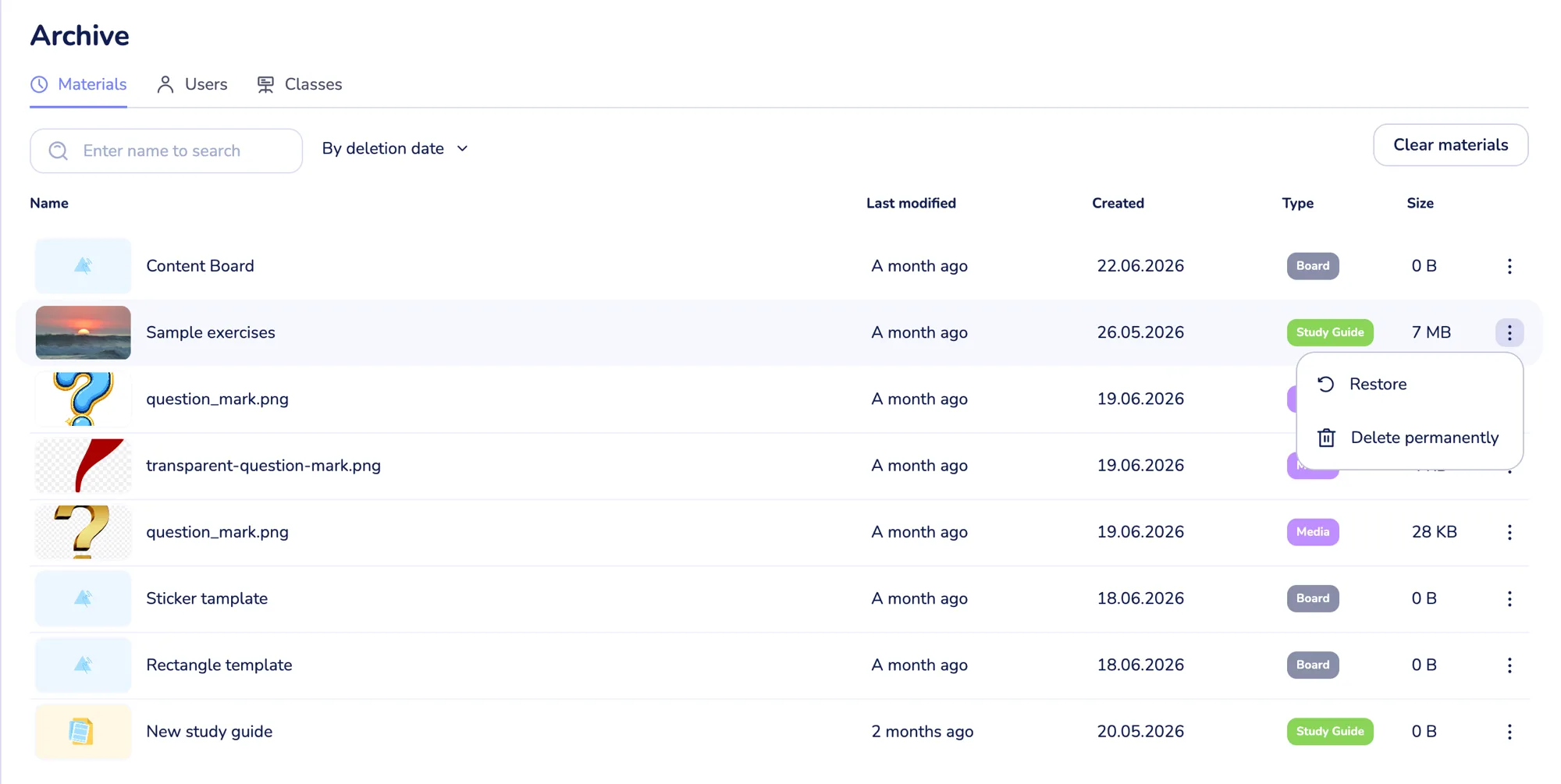
The material goes back to your library, ready to use in a lesson or as homework exactly as before.
One thing worth knowing: a material that was shared with a public link loses that link while it sits in the Archive, and gets it back when you restore it. Anyone holding the old link sees nothing in the meantime, then finds the material working again afterwards — the link itself doesn’t change.
How material gets there in the first place
In your library, open a card’s ⋮ menu and choose Delete.
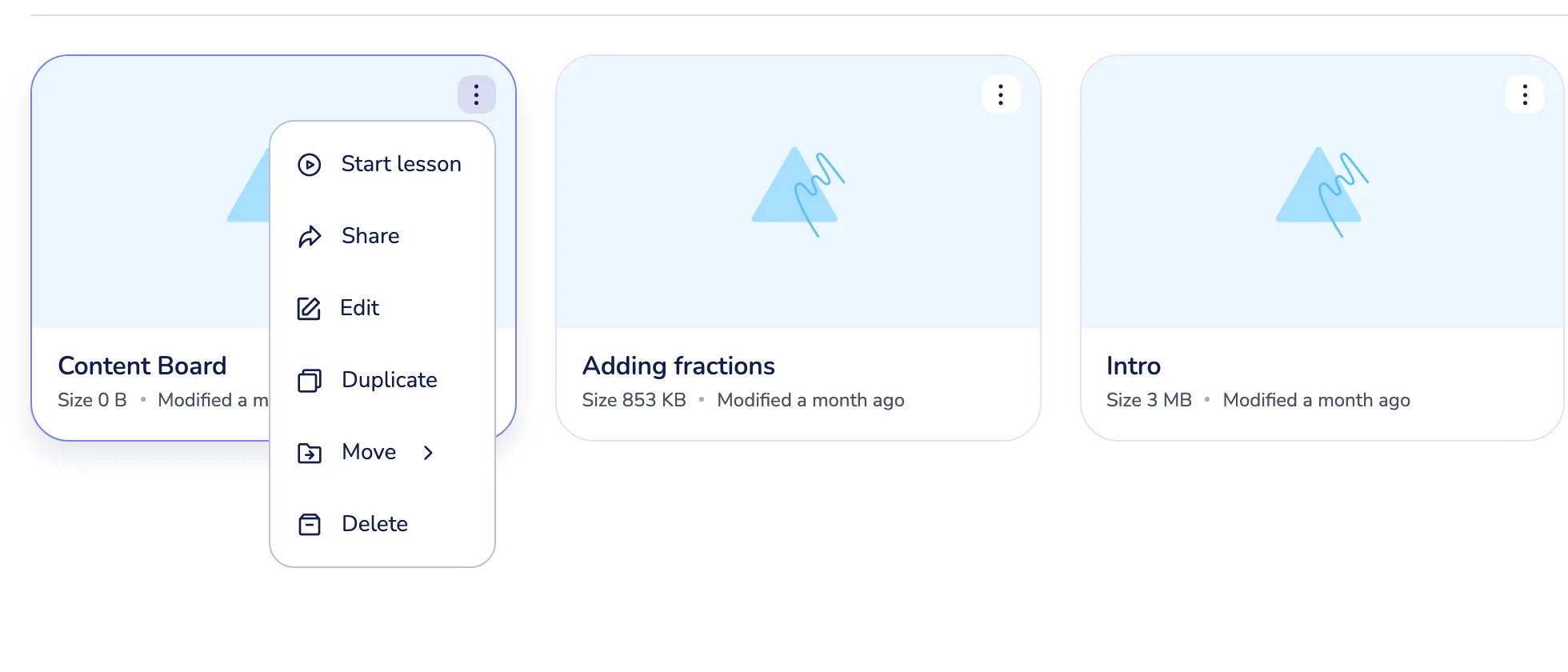
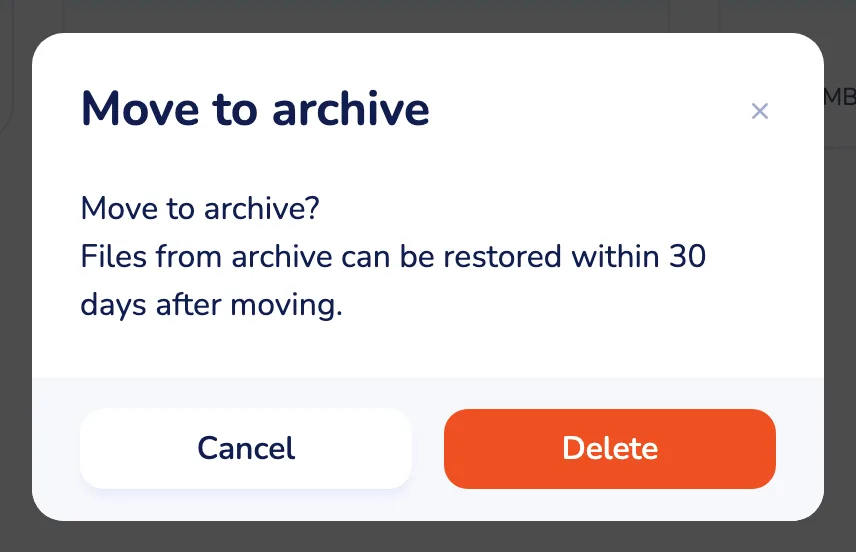
That opens a Move to archive confirmation. The button on it is labelled Delete, but it only moves the material to the Archive — this is the step that starts the 30-day clock.
Deleting a whole folder works the same way: everything inside it goes to the Archive with the same 30 days, so a folder removed by accident is fully recoverable.
Delete something for good
If you’re sure you don’t want it back:
- Delete permanently in a row’s ⋮ menu removes that one item immediately.
- Clear materials, top right of the Materials tab, empties the whole tab at once.
Neither can be undone — there’s no second archive behind the first one.
What happens after 30 days
Thirty days after you delete it, a material is removed permanently. There’s no reminder and no separate confirmation — the 30-day window is the warning.
The Archive doesn’t show a per-item countdown. To see what’s closest to expiring, sort By deletion date and look at the bottom of the list.
The Archive and your storage
Archived material doesn’t count against your storage quota. The moment you delete something, its size comes off your used storage, exactly as if it were gone.
That has one consequence on the way back: restoring puts those files back onto your quota, so it’s refused if you no longer have room. If that happens, free up space or move to a bigger plan, then restore. Storage is 500 MB on Free, 5 GB on Solo Pro, 15 GB on Solo Max and 100 GB on Business — see Compare Class Spot plans.
Tips
- “Delete” means “archive”. In the library the menu item is Delete, but the first click only moves the material to the Archive. The permanent one is Delete permanently, inside the Archive.
- Check the Archive before buying more storage. Clearing it won’t free any quota — archived files don’t use one — but restoring from it will consume quota, so decide what you actually want back first.
What to do if it doesn’t work
Restore is refused and I’m told there isn’t enough space. Restoring returns the material’s files to your storage quota, and you don’t have room for them. Delete something you no longer need from your live library, or move to a plan with more storage, then restore again.
Clicking Archive opens an upgrade prompt. You’re on the Free plan — Archive access starts at Solo Pro. Your material is still safe: it’s kept for the same 30 days on Free as on any other plan, you just can’t reach it. If you upgrade while it’s still inside that window, the Archive opens with everything waiting in it. After 30 days it’s gone for good, so don’t wait if there’s something you need back.
I deleted something more than 30 days ago. It’s been removed permanently and can’t be recovered, by you or by us.
Still stuck? Contact us via the in-product chat (the green bubble in the bottom-right of your cabinet) or info@classpot.com.