You're halfway through a sixty-minute lesson. The student's answers are getting shorter, and you notice their eyes drifting away from the screen. The energy is fading, and now your plan for what comes next doesn't seem to fit anymore.
This is exactly when a quick game can help. Not something you planned the night before, but an activity you can start in the next minute using only what's already on your screen. It gives the lesson a boost and helps you get the focus you need to finish well.
This list isn't like the longer, structured ESL activities you plan ahead and run for 8 to 20 minutes. The games below are made for the opposite situation. They need no planning, take just thirty seconds to five minutes, and work for almost any subject or age group whenever you need them.
Why Quick Games Work Even Without Lesson Planning
A quick game doesn't have to be packed with teaching content to be helpful. Its main purpose is not to introduce new material, but to break up a drop in attention and give students a short, active break that helps them refocus for the next part of the lesson.
This approach works because attention in online learning doesn't fade gradually. Instead, it drops when certain things happen, like too much passive listening, repeating the same type of task, or just getting tired at a common point in the lesson (often around 25 to 35 minutes into a 60-minute class). Doing a short, genuinely different activity helps students regain their focus much better than simply continuing the same routine or taking a passive break.
The games listed below need almost no setup, and that's the main idea. If a game takes ten minutes to prepare, it isn't really a quick game. In that case, it's a planned activity, and you should look at the longer activity list instead.
Warm-Up Games (Under 2 Minutes)
1. Lightning Round
Choose a category like animals, countries, numbers, or last week's vocabulary. The student has 30 seconds to name as many items as possible. If you have extra time, let them switch roles. This game is simple, free, and works for any level or subject.
2. Would You Rather
Ask a quick "would you rather" question. It can be silly or related to your subject, like "Would you rather solve ten easy problems or two hard ones?" The student answers and gives one reason. This takes about thirty seconds and needs no materials.
3. One-Word Mood Check
Ask the student to describe their day or their feelings about the lesson topic in just one word. Then, have them explain their choice in one more sentence. This is a quick game that also works as a real emotional check-in.
4. Guess the Number
Pick a number between 1 and 20, or use any range that fits your subject, like a date or a formula constant. The student guesses, and you tell them if the answer is higher or lower. This can be a simple warm-up or a real numeracy task in maths.
Mid-Lesson Reset Games (2–5 Minutes)
5. 20 Seconds, No Repeats
Pick a topic and have the student talk for 20 seconds without stopping or repeating any words. Use a timer where they can see it. This quick challenge helps boost energy by adding a bit of pressure and a clear goal.
6. Spot the Difference (Verbal)
Describe two almost identical situations out loud and ask the student to spot the difference. This works well for practicing descriptive language or for subjects where they need to notice what has changed in a problem.
7. Category Swap
Say a category, like "things that are red," "prime numbers," or "irregular verbs." The student names three things that fit, then you quickly switch to a new category. Change categories every 15 to 20 seconds. The fast pace helps students refocus.
8. Two-Minute Teach-Back
Have the student explain something from earlier in the lesson as if they are teaching it to someone new. This checks what they remember and helps bring back the attention of students who may have lost focus.
9. The Silent Minute
For younger students or those who are easily distracted, give a quick written task, like writing a sentence, solving a problem, or drawing something. Ask for one minute of complete silence while they work. The quiet break helps reset their focus.
Whiteboard-Specific Games (Using Class Spot Board Features)
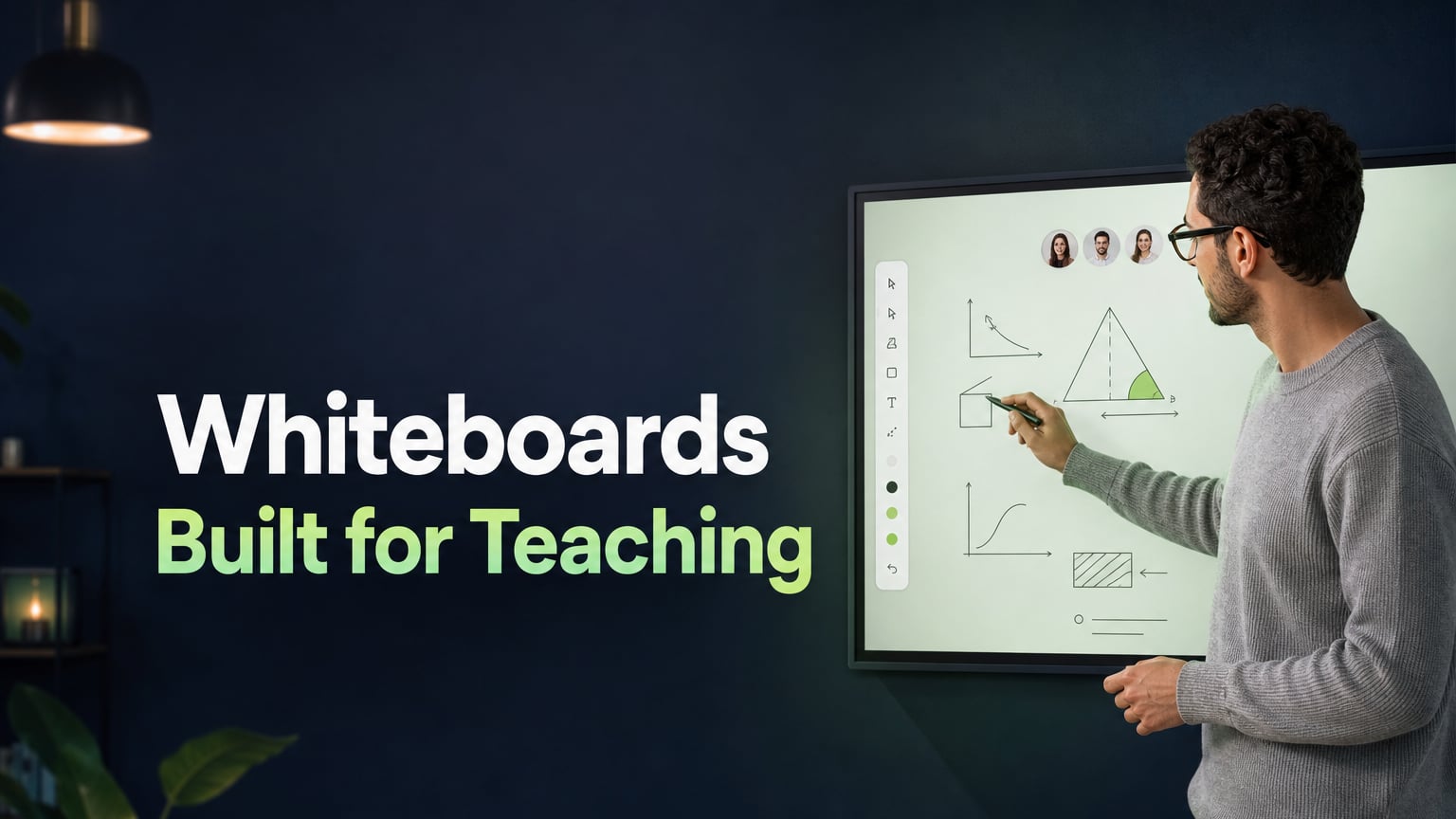
These games are designed for the Class Spot interactive whiteboard and work well because they use tools that are already available during your lesson. You don't need a separate app or any extra setup.
10. Cursor Tag
Class Spot shows each person's cursor as either "teacher" or "student," so it's always clear who is pointing at what. To play, call out an object, word, or number on the board and see who can point to it first. This simple game is fun for almost every student, no matter their age.
11. Erase and Guess
Write a word, formula, or sentence on the board using the pencil tool. Next, erase one part, like a letter, number, or word, and ask the student to guess and fill in what's missing with the text tool. You can use this activity for vocabulary, grammar, or math practice, depending on your lesson.
12. Shape Builder Race
Use the board's geometric shapes, like circles, ovals, squares, triangles, lines, and arrows. Give the student a description and have them build it on the board as quickly as they can. This could be a simple diagram, a labeled shape, or a basic chart. It's a good way to reset and practice spatial thinking, especially for younger students or visual subjects.
13. Tracking Hide-and-Seek
Use the board's tracking tool to see exactly where the student's cursor and focus are on the board. Hide a small piece of text or an image somewhere on a zoomed-out board by using the scale feature to show a larger area. Then, ask the student to find it. Watching the tracking indicator move as they search adds a playful and low-pressure sense of "are they getting close? Spot's interactive games constructor lets you build simple educational games directly inside the platform — useful when a quick game becomes a recurring favorite, and you want a reusable version rather than recreating it from scratch each time.
End-of-Lesson Games (Last 5 Minutes)
14. Three Things, One Lie
Ask the student to share three things they learned in the lesson, but make sure one of them is false. You then guess which one is not true. This helps the student remember the lesson in a fun way and shows you what they really understood.
15. Rate and Justify
Ask the student to rate the lesson, a certain activity, or their own performance out of 10. Then, have them explain their rating in one sentence. This quick game also gives you useful feedback, and students usually enjoy having a say in the process.
How to Pick the Right Game for the Moment
| Situation | Best game type |
|---|---|
| Lesson just started, student seems low-energy | Warm-up games (1–4) |
| 25–35 minutes in, attention visibly dropping | Mid-lesson reset (5–9) |
| You're already using the whiteboard for the main task | Whiteboard games (10–13) |
| Last five minutes, want to consolidate and close well | End-of-lesson games (14–15) |
| Younger learner getting distracted by drawing on the board | Erase and Guess, Shape Builder Race, or use Action Control to limit distractions first |
| Adult student, time-pressured, wants efficiency | Lightning Round, 20 Seconds No Repeats, Teach-Back |
Where These Games Live: The Board Itself
Most of the games above only need a pencil, some colors, and the ability to point at things. That's why they fit into any lesson without extra prep. When you have everything ready in the same window as your video call, you'll find yourself using them much more often.
The Class Spot whiteboard gives you a 10-color palette, a pencil tool that works with a mouse or graphics tablet, geometric shapes, a text tool, and an eraser. You can use all of these right away, without switching tools or tabs. The tracking feature shows you where a student is looking on the board, so you can play games like Tracking Hide-and-Seek without extra setup. You can also zoom in and out, so one board can hold materials for several lessons and you can move between sections quickly during a game.
You can save boards as templates and reuse them with different students. You can also download a board and send it to a student after the lesson. The board lets you upload PDFs, slides, images, video, and audio directly. If a quick game gives you an idea for something bigger, you can build on the same board without starting from scratch. All these features are included in Class Spot's free plan, with no limits on lessons or students.
The games are free. When they're just one click away, in the same place as the rest of your lesson, you're much more likely to use them instead of forgetting to try them next time.
Frequently Asked Questions
What games can you play in an online class?
If you need quick games that don't require preparation, you can try word-association sprints, lightning rounds on a category, "would you rather" questions, or whiteboard games like erase-and-guess or cursor-pointing races. These games work for different subjects and age groups since you only need a video call and a shared writing space. For more structured activities focused on specific learning goals, it's better to use a dedicated list of exercises with names and timing instructions instead of a quick game.
How do you make an online lesson fun quickly, without planning ahead?
To quickly boost energy during a lesson, use a short game that needs no extra materials, like a category-naming sprint, a 20-second speaking challenge, or a quick gap-fill on the shared board with the eraser tool. Make sure the game is easy to explain in less than thirty seconds, since anything with a long setup won't work as a fast, in-the-moment energy boost.
What are good 5-minute games for online tutoring?
Some good five-minute games are teach-back exercises, where the student explains a concept as if teaching it to someone else, category-swap rounds that change topics every 15 to 20 seconds, and whiteboard shape-building races. These activities help students refocus without taking up too much lesson time.
Can you play games on a virtual whiteboard?
Yes, a whiteboard with basic tools like drawing, text, shapes, an eraser, and visible cursors can be used for many quick games. You can try erase-and-guess gap fills, cursor-pointing races, shape-building challenges, or hide-and-seek games using the board's tracking or zoom features. Some platforms, such as Class Spot, also let tutors create more structured games right in the same space, so you don't need a separate app.
What games work for both kids and adults online?
Games that use quick verbal exchanges, like lightning rounds, would-you-rather, or teach-back, and simple whiteboard activities, such as cursor tag or erase-and-guess, work well for all ages. These games avoid childish themes and strict rules, so the content can fit any group while the format stays the same. Games with lots of rules or long setups usually suit one age group more than another. The fastest and simplest games tend to work best for everyone.