
Most online tutors start on Zoom. It's familiar, it works, and students already use it. But sooner or later, after losing a third tab during a lesson or juggling four different tools for every session, they start to wonder if there's a better way.
If you are comparing several teaching platforms, there is a full breakdown of six options: Zoom, Google Meet, Miro, Teachable, Microsoft Teams, and Class Spot. Here, we focus on Zoom versus Class Spot, which is the choice most tutors actually face. We include enough detail to help you make a clear decision.
First, a quick note: this comparison is written by the Class Spot team, so it is not neutral. However, we aim to be honest. Zoom is a genuinely good product. The point here is not that Zoom is bad, but that it was designed for a different purpose than what you need as a tutor.
The Real Question: What Job Are You Hiring the Tool to Do?
Zoom was created for business meetings. Features like easy entry, reliable video, screen sharing, and mute controls for groups all fit well in that setting. Zoom does this job very well.
Online tutoring is different from a meeting. It is a structured teaching session where the teacher needs a shared writing space, can see and respond to student understanding right away, can assign and collect tasks, keeps a record of what was covered and how the student did, and uses tools that do not force the student to open several apps before starting.
These needs are not the same. Using Zoom for tutoring is like using a conference room for a piano lesson. It is possible, but the space is not made for that purpose and it feels limited.
Where Zoom Genuinely Excels
Let's look at the strengths first, since they are real and deserve recognition.
Familiarity is Zoom's biggest advantage in 2026, and it matters. Most adults who use the internet have tried Zoom. When a student joins your lesson through a Zoom link, they know what to expect. There's no learning curve, no confusion, and no wasted time on technical setup at the start of the lesson.
Stability and reliability are key. Zoom's video and audio quality stay strong even with different network conditions. For tutors working in areas where internet quality varies between them and their students, Zoom's compression and stability features make a real difference.
Recording is easy with Zoom. Its built-in session recording creates usable video files. Tutors who want to record lessons for students can do so without extra setup.
Large group support is another strength. For sessions with more than ten students, like webinars, group classes, or workshops, Zoom's participant management, breakout rooms, and polling tools are reliable and well-developed. If you often teach larger groups, Zoom does this better than most tutoring platforms.
Zero setup for students is a real benefit. They can join a Zoom call from a link without needing an account, making it easier to start the first lesson. This helps especially with students who aren't confident with technology.
Where Zoom Falls Short for Tutors
The limitations come from how Zoom was designed.
No Integrated Whiteboard Built for Teaching
Zoom includes a whiteboard feature, but it was made for general collaboration, not for tutoring tasks like writing grammar examples, marking student errors, building vocabulary trees, solving math proofs, or reviewing a student's writing line by line.
In practice, most tutors who use Zoom for live annotation either stick with Zoom's whiteboard and find it limited, or they add tools like Miro, Jamboard, or a shared Google Doc. This creates the problem of having too many tabs open. Every time you switch between the Zoom call and another whiteboard, it interrupts the flow of the lesson. Students notice these disruptions, even if they do not mention them.
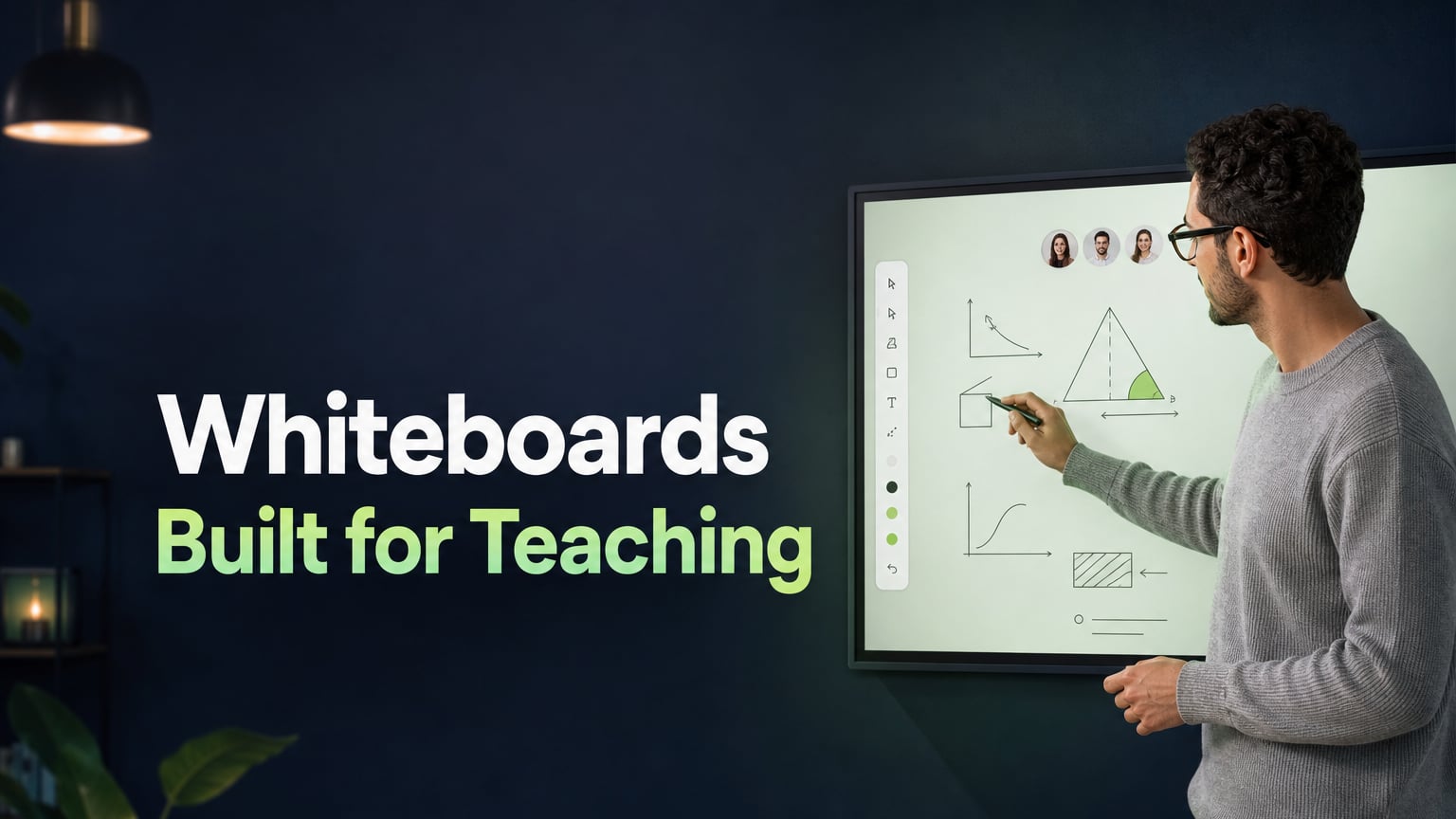
A dedicated tutoring platform has an interactive whiteboard designed for teaching. It includes annotation, saved boards, file uploads like PDF, PPT, JPG, and MP3, and student writing tools, all in one place. You never have to leave the call to use the board. The board becomes the lesson itself.
No Student Profile or Lesson History
Zoom does not remember your students. When a session ends, it forgets who attended, what you discussed, any mistakes that came up, and what you planned for next time. Each time you open Zoom, you have to start fresh.
This might seem obvious, but it has a real impact on your work. Before each lesson, a tutor without a built-in student profile has to find their notes, track down last week's whiteboard screenshot, check email for homework, and remember where the student left off. All of this takes about five minutes before every lesson, and it adds up quickly for every student each week.
A built-in CRM with student notes, session history, recurring error logs, and contact information, all in the same tab as your lesson, takes away the need for all that extra prep.
No Homework or Task System
When using Zoom, homework might be sent as a WhatsApp message, a Google Classroom post, or an email. Students turn it in through a different platform, and you review it somewhere else before the next session. Lessons, communication, materials, and task management all end up scattered across different places.
This kind of fragmentation is inefficient and can make the experience feel less professional for students. When a student gets homework in one app, submits it in another, and joins the lesson in a third, the whole process feels pieced together because it actually is. Having lessons, homework assignments, and submissions all in one place shows professionalism and can affect how much students value what they are paying for.
No Progress Tracking
Zoom does not keep track of student performance from one session to the next. It does not offer any way to spot error patterns, record milestones, or create progress data that could help with monthly reports or goal-setting discussions.
All the information a tutor needs about a student's growth over time is scattered in different files, notes, and memories. None of this is linked to the lesson space where teaching takes place. To track student progress during lessons, you need a separate system, since Zoom does not offer this feature.
No Reactions or Real-Time Comprehension Feedback
Zoom offers emoji reactions, but these are mainly used as social gestures, like clapping or giving a thumbs up after a presentation. They are not meant to check if students understand the material. In a tutoring session, it is important to know right away if a student has understood something, without having to stop the lesson to ask.
Lesson reactions made for tutoring, such as thumbs up or down, 'I understand' or 'I'm confused,' and subject-specific signals, let students share how they feel without having to speak up. This makes it easier for them to be honest, especially for ESL students and younger learners who might be shy about saying they did not understand.
Side-by-Side: Zoom vs. Class Spot
| Feature | Zoom | Class Spot |
|---|---|---|
| Video call quality | ✅ Excellent | ✅ Excellent |
| Student setup required | ✅ None (link join) | ✅ None (browser only) |
| Integrated whiteboard for tutoring | ⚠️ Basic / limited | ✅ Full tutoring whiteboard |
| Board saves between sessions | ❌ No | ✅ Yes — automatic |
| Prepare boards before lesson | ❌ No | ✅ Yes |
| Upload PDF, PPT, audio to board | ❌ No | ✅ Yes |
| Student writes on board | ⚠️ Limited | ✅ Yes — in real time |
| Student profile / CRM | ❌ No | ✅ Yes — in-session access |
| Lesson history and notes | ❌ No | ✅ Stored per student |
| Homework assignment | ❌ No | ✅ Yes — automatic checking |
| Real-time lesson reactions | ⚠️ Social emojis only | ✅ Comprehension-specific |
| Interactive games / activities | ❌ No | ✅ Built-in constructor |
| Student personal account | ❌ No | ✅ Schedule, tasks, materials |
| Progress tracking | ❌ No | ✅ Notes, error logs, history |
| Screen sharing | ✅ Yes | ✅ Yes |
| Session recording | ✅ Yes | ✅ Yes |
| Group sessions (10+ students) | ✅ Strong | ✅ Strong |
| Free tier available | ✅ Yes | ✅ Yes |
| Dedicated tutoring tools | ❌ None | ✅ Built for this use case |
The Switching Question: What Happens to My Students?
This is the question tutors ask most often when thinking about switching from Zoom, and it makes sense. Students are used to joining lessons with a Zoom link, so changing the setup means they have to try something new.
To join a Class Spot lesson, students just click a link and open it in their browser. That's all. There's no need to create an account, download anything, or install an app. The lesson opens right in the browser tab, with both the video call and whiteboard ready to go.
For most students, joining a Class Spot lesson for the first time feels just like clicking a Zoom link. The main difference is that the lesson opens with a prepared board instead of a blank call window.
Tutors need to do a bit more setup for the first session, like creating the lesson, setting up the student profile, and uploading any materials. This usually takes five to ten minutes the first time. After that, the student's profile and board history are saved, so getting ready for future lessons is much quicker than on Zoom since you don't have to start from scratch.
Worries that "my students will be confused" rarely come true. When students see a more organized and integrated lesson in their first Class Spot session, they usually see it as an improvement, not a problem.
Pricing: What Does Each Platform Cost?
Zoom's free plan limits group meetings with three or more people to 40 minutes. One-on-one meetings are unlimited, so most private tutoring sessions are not affected by this time limit.
Zoom Pro costs about $13 to $15 per month. It removes time limits and adds features like cloud recording, reporting tools, and forecasting options for business users.
Class Spot's free plan is also limited by 40 minutes, but tutors get full access to the whiteboard, file storage of 500 MB, scheduling calendar, and use homework tools. The free plan lets tutors run a full practice before deciding to upgrade.
The paid version of Class Spot adds features such as increased cloud storage, advanced CRM tools, a timer, reactions, dimensioned geometric shapes, priority support, and much more.
Both platforms have a free plan that works for most tutors. The main difference is what you get for free: Zoom offers a solid video call, while Class Spot gives you a full teaching setup.
Who Should Stay on Zoom
Zoom is still the best option if any of the following apply to you:
- You often host large group sessions or webinars with more than 10 people, and you rely on Zoom's advanced participant management features.
- Recording your sessions is essential to your workflow, and you do not want to change how you handle recordings.
- You teach students in places where internet quality can vary, and you need Zoom's compression to keep sessions running smoothly.
- You teach on a one-off basis, with no repeat students and no need to save lesson data.
Who Should Consider Class Spot
Class Spot could be a good fit if you recognize yourself in any of these situations:
- You run one-on-one or small group sessions where tools like the whiteboard, homework, and tracking student progress are important
- You often spend time before lessons figuring out where you left off previously
- You use several different tools for each lesson, like Zoom, a whiteboard, homework assignments, and notes
- You wish you could send detailed, data-based progress reports without having to create your own tracking system
- You've had students leave and think the lesson experience, rather than your teaching, may have played a role
- You want your lesson environment to show the professionalism that supports your rates
Start With One Student
The easiest way to decide between Zoom and Class Spot is to try one lesson in Class Spot with a real student during your next session. Setup takes just two minutes. Your student clicks a browser link, and the board is ready when they join.
If the lesson feels better, more structured, interactive, or professional than your usual Zoom setup, you have your answer. If it does not feel much different, you have not made any commitment.
Set up your first lesson for free. No credit card is needed.
Frequently Asked Questions
Is Zoom good enough for online tutoring?
Zoom works well for video calls and is a good choice if your lessons are mostly verbal and do not need shared writing, annotation, homework, or progress tracking. If you need features like a whiteboard, student profiles, saved lesson boards, or homework tools, you will need extra apps with Zoom. This can lead to switching between tabs, which may interrupt your lesson and take more time to set up. Whether Zoom is good enough depends on how much these extra steps affect your lesson quality and student retention.
What is a better alternative to Zoom for teaching online?
Class Spot makes small-group tutoring easier by bringing together tools like video calls, an interactive whiteboard, a student CRM, automatic homework tracking, lesson reactions, and progress tracking—all in one browser tab. Students can join with a simple link, no downloads needed. The free tier gives you the complete teaching setup with no time limits.
Will my students need to download anything to switch from Zoom?
No. Students join Class Spot lessons by clicking a link and opening it in their browser, just like they would with Zoom. There is no need to download an app or create an account. The lesson opens right in the browser tab. For most students, joining feels the same as clicking a Zoom link, but when they arrive, a ready-to-use interactive whiteboard is waiting for them.
How is an online classroom different from Zoom?
Zoom is mainly used for business meetings as a video conferencing tool. In contrast, an online classroom is a teaching space that combines video calls with features like an interactive whiteboard, student profiles, lesson materials, homework tools, progress tracking, and ways for students to react. The difference is similar to comparing a telephone to a fully equipped office: one simply connects people, while the other provides everything needed for a specific type of work.
Can I use Class Spot alongside Zoom, or does it replace it?
Class Spot is built to fully replace Zoom for tutoring sessions. Its built-in video call lets you meet with students without needing another video tool. Some tutors use both platforms for a while, starting new students on Class Spot and keeping current students on Zoom until switching everyone feels comfortable. Both methods are fine, but there is no technical need to use both at the same time.