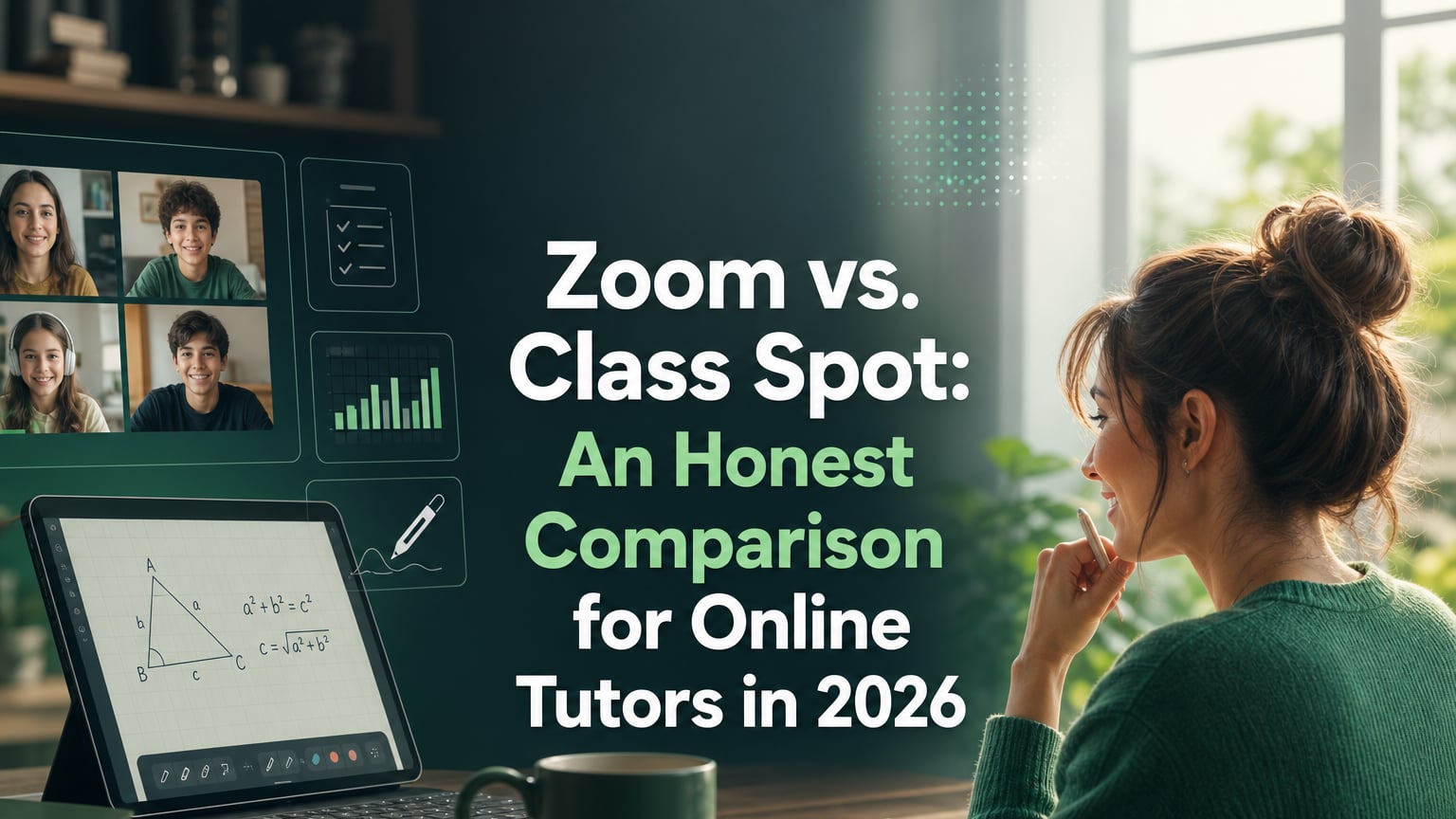
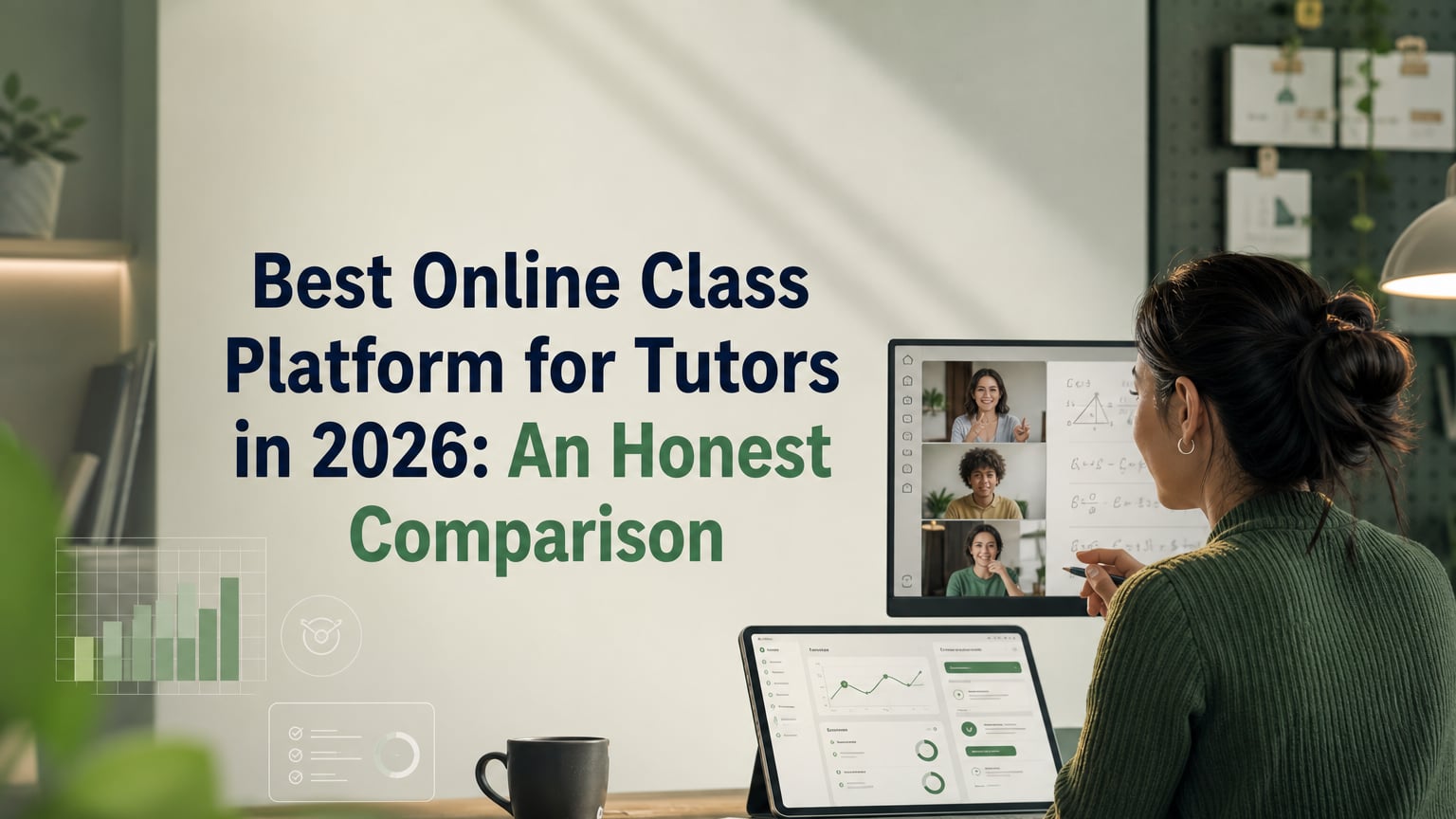
When tutors ask "what is the best online class platform?", they're usually asking the wrong question — not because the question doesn't matter, but because the answer depends entirely on one variable they haven't named yet: what kind of teaching are you doing?
A tutor who offers pre-recorded grammar courses needs a very different platform from someone teaching live 1-on-1 IELTS lessons. A teacher running webinars for 50 students has different needs than someone leading interactive vocabulary sessions with just one adult in the evening. The platform that works best for one situation might be a poor choice for another.
This guide looks at six of the most popular online teaching platforms in 2026. For each, you'll see what it does well, where it might not work for tutors, and who it's really designed for. The aim is to help you choose in 15 minutes, so you don't waste a week testing tools and end up back on Zoom.
If you're still looking for students and your schedule isn't full yet, focus first on how to find students for online teaching. Choosing a platform becomes important once you have students to teach.
The 5 Criteria That Actually Matter for Live Online Tutoring
Most articles that compare platforms just list features: does it have a whiteboard? Are there breakout rooms? Can you record sessions? These long tables rarely help you make a real decision.
What really matters for choosing a platform is how it affects your lessons and results:
- Lesson flow: Can you run a session smoothly without switching tabs, sharing links, or juggling different tools? Each interruption makes students lose focus and hurts engagement.
- Student focus and interactivity: Does the platform let students actively participate, or are they just watching? Passive lessons lose students' attention, while interactive ones keep them involved.
- Progress visibility: Can you track and show student progress right in the teaching platform, without needing a separate system?
- Setup friction for the student: How many steps does a student need to take before starting the lesson? Each extra step means you might lose some students, especially younger ones.
- Professional credibility: Does the platform show that you are organized and professional, or does it look like a mix of random consumer apps?
The following platforms are evaluated using these five criteria.
Platform Comparison at a Glance
| Platform | Lesson Flow | Interactivity | Progress Tracking | Student Setup | Best For |
|---|---|---|---|---|---|
| Zoom | ⚠️ Requires extra tools | ❌ Video only | ❌ None | ✅ Very easy | General video calls |
| Google Meet | ⚠️ Requires extra tools | ❌ Video only | ❌ None | ✅ Very easy | Simple calls, existing Google users |
| Microsoft Teams | ❌ Complex for 1-on-1 | ⚠️ Limited | ⚠️ Basic | ❌ Requires account | Schools and organisations |
| Miro | ⚠️ Video calls built-in (paid plans, beta) | ✅ Excellent whiteboard | ❌ None | ⚠️ Students need account + learning curve | Team workshops, visual collaboration |
| Teachable / Thinkific | ✅ For async courses | ❌ Not live | ✅ Course progress | ✅ Easy for students | Pre-recorded courses |
| Class Spot | ✅ Integrated | ✅ Live + interactive | ✅ Built-in | ✅ One click | Live 1-on-1 and small group tutoring |
Platform-by-Platform Breakdown
Zoom: The Default Choice, and Why That's Both Its Strength and Its Weakness
Zoom became the main teaching tool because people were already familiar with it. By 2021, nearly every adult had used Zoom, so tutors didn't need to explain how to join a call. Even in 2026, this familiarity remains its biggest advantage.
What Zoom does well:
- Stable, reliable video and audio in most network conditions
- Screen sharing that works without configuration
- Almost no student setup is needed because most students already have Zoom installed
- Breakout rooms for group sessions
- Session recording
Why Zoom isn't ideal for tutoring: Zoom is mainly a video conferencing tool made for business meetings, not teaching. It doesn't have a whiteboard for live lesson notes, student profiles, progress tracking, homework features, or a way to create interactive lessons that keep students engaged for a full hour.
Because of this, most tutors who use Zoom need several extra tools: a whiteboard like Miro or Jamboard, a place for materials like Google Slides or PDFs, a chat app like WhatsApp, and a homework system like Quizlet or Google Forms. Each tool works on its own, but using them all together means constantly switching tabs, which disrupts the lesson and shows students that the setup wasn't really made for teaching.
Zoom also doesn't help you keep students engaged during the lesson. It just gives you the video call. Keeping students interested is completely up to you, since the platform doesn't offer any built-in support.
Who is Zoom best for? It works well for tutors who want the widest compatibility with students and don't need built-in teaching tools yet. It's a good place to start, but not the best long-term choice if you care about keeping students and offering high-quality lessons.
Google Meet: Easy to Use, but Lacking Features for Tutoring
Google Meet's biggest strength is how easily it works with Google Workspace. If you and your student both use Gmail and Google Docs, Meet fits right in. The video quality is similar to Zoom, and students using Chrome can join calls without downloading anything.
What Google Meet does well:
- Students using Chrome can join without downloading anything, making it as easy as possible.
- Clean, minimal interface that's easy to use
- Integrates with Google Calendar for scheduling
- Reliable for straightforward video sessions
Where does Meet fall short? Like Zoom, it is just a video call tool, not a full teaching platform. There is no whiteboard, no way to manage students, no progress tracking, and no interactive tools. It only handles communication.
If you mainly use Google Docs and Slides to teach, Meet can work well. However, your lesson will still be spread over several browser tabs, which can make it harder to stay focused.
Meet is best for tutors who already use Google Workspace and prefer simplicity over advanced teaching features. It is not ideal for those who want interactive lessons with progress tracking.
Microsoft Teams: Made for Organisations, Not for Tutors
Teams is a full-featured collaboration platform designed for businesses and institutions. It offers more features than Zoom and Meet, such as channels, file storage, assignment tools, and a whiteboard. However, these tools are meant for employee teams, not for one-on-one tutoring.
What Teams does well:
- Built-in whiteboard (Whiteboard app) with decent annotation tools
- Assignment and task creation
- Integration with Microsoft 365 tools
- Suitable for schools and educational institutions with existing Microsoft licenses
Where it falls short: Teams is not made for individual tutors. The setup is complicated because students need a Microsoft account to use all features, which makes onboarding harder. The interface uses channels and workspaces, which work well for organisations but feel too complex for a single tutor working with individual students. Navigating Teams takes more effort than using platforms designed specifically for tutoring.
Best for: Schools and educational institutions that already use Microsoft tools. It is not recommended for individual tutors because its complexity does not match their needs.
Miro: Video and Whiteboard Combined, Designed for Teams Rather Than Tutors
Miro is a powerful collaborative whiteboard tool. Many tutors use it for lessons that need a lot of visual work, such as mind maps, complex diagrams, flowcharts, or visual language activities.
What Miro does well:
- A genuinely powerful, flexible whiteboard with a wide range of templates
- Real-time collaboration with no lag on most connections
- Sticky notes, text, shapes, images, and drawing tools all in one space
- Built-in video calls are available on Starter, Business, and Enterprise plans. This feature is currently in beta and supports up to 25 participants, so you do not need a separate Zoom window.
- Good for visual learners and subjects that benefit from complex spatial organisation
Where Miro falls short for tutoring: It was designed for team workshops, design sprints, and corporate retrospectives, not for structured one-on-one tutoring sessions. This is clear in the features it lacks: there is no student profile or lesson history, no homework or task assignment system, no progress tracking, and no lesson structure tools like goal-setting or session review.
The student experience can also be challenging. To join a Miro board, students usually need to create a Miro account and use an interface designed for professional teams. For a teenager preparing for a GCSE exam or an adult fitting a lesson into a lunch break, this onboarding process adds extra steps before the lesson even begins.
The video call feature is useful, but it is still in beta and not available on the Free plan. Tutors should try it on a paid plan before deciding to use it long-term.
Best for: Tutors whose subjects need complex visual organisation, especially creative topics, sessions focused on mind mapping, or design-related content. It is less suitable as a general tutoring classroom if student access and progress tracking are important.
Teachable and Thinkific: Great for Courses, Not for Live Lessons
Teachable and Thinkific are top platforms for creating and selling online courses. They work best for pre-recorded video content organized into modules that students can complete at their own pace. If you want to build a recorded English grammar course or a self-study IELTS prep program, these platforms are a good fit.
But if you want to do live tutoring, these platforms are not the right choice.
These platforms are not built for real-time teaching. They do not offer live video calls, interactive whiteboards, or any way to have the kind of back-and-forth you need in a tutoring session. They are made for courses you take on your own schedule, not for live lessons.
These platforms are best for tutors who want to create recorded courses that can scale, either as a supplement to live sessions or as a replacement. They are not suitable for live one-on-one or small group tutoring.
Class Spot: Built for Live 1-on-1 Tutoring
Class Spot is the only platform here that was built from scratch for live individual and small-group tutoring. Other tools are general-purpose video, whiteboard, or course creation platforms that have been adapted for tutoring.
The main difference is how everything is integrated. In Class Spot, the video call, interactive whiteboard, student profile, homework and materials, and progress tracking are all in one tab. You don't have to switch between Zoom, Miro, or Google Docs. Students join with a single link in their browser. They don't need to download anything or create an account.
What Class Spot does well:
- Integrated lesson environment: video, whiteboard, and materials all in one place
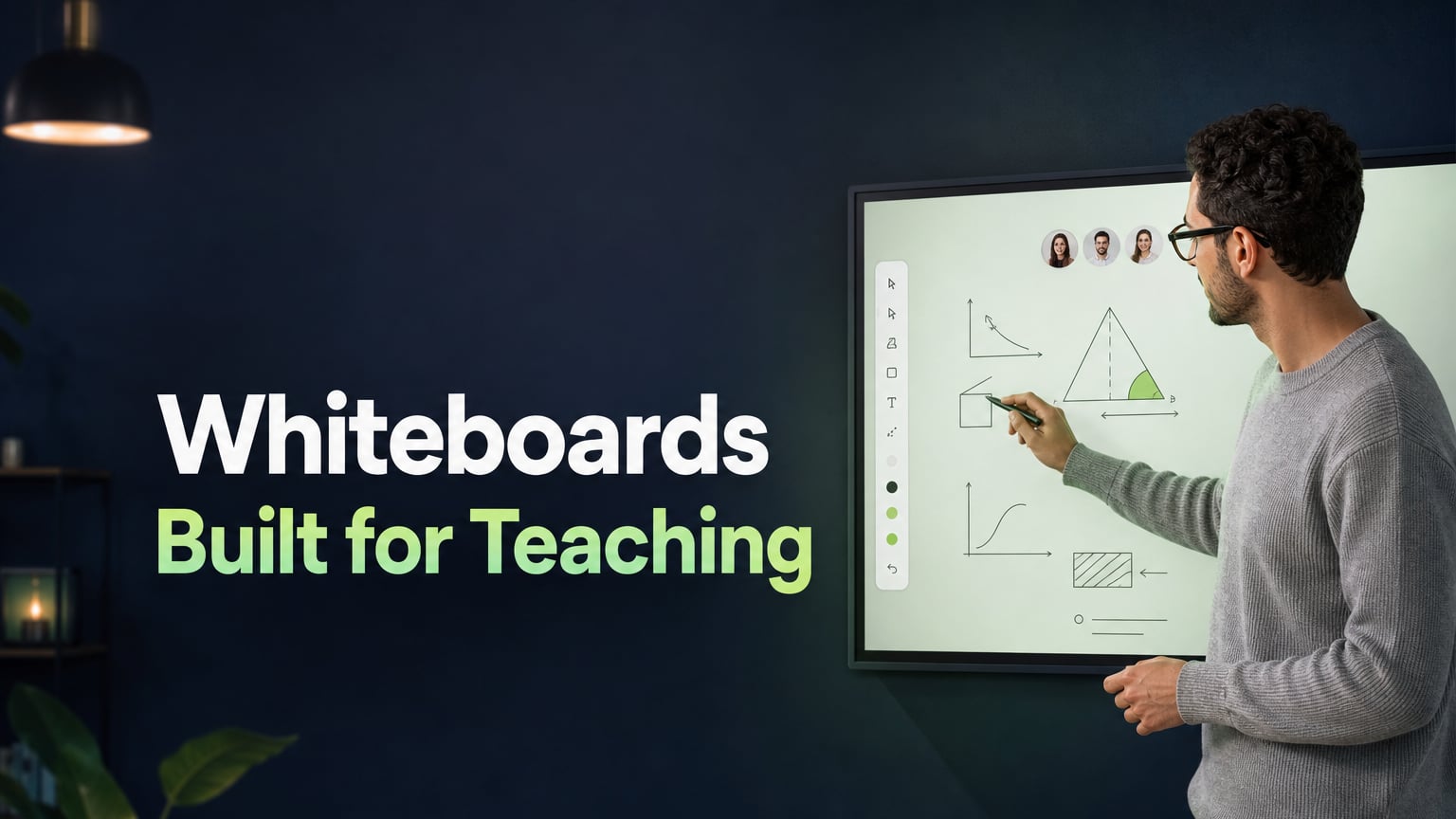
- Interactive whiteboard with real-time annotation, drawing, text, PDF upload, and student writing tools, all designed for tutoring instead of general collaboration
- Student profiles: notes, lesson history, recurring errors, and homework records are all accessible during the session
- Student reactions: live feedback tools like thumbs up or down and emoji responses help you check comprehension and engagement without interrupting the lesson
- Homework and task assignment happen within the lesson, so students receive and submit work in the same environment
- Saved lesson boards: each session's board is automatically archived, giving both tutor and student a visual record of every lesson
- Zero student setup: the student just opens a link in their browser and the lesson starts. No account, app, or download needed.
- Freemium model: start completely free and upgrade only when you need more features
The interactive whiteboard and student profile system directly support the interactive activities that work best in live sessions, and the built-in progress tracking means you can show student progress without any additional tool.
Best for: individual tutors and small tutoring businesses that run live one-on-one or small group sessions and want all their teaching tools in one place.
Which Platform Is Right for Your Teaching Style?
- Running live 1-on-1 tutoring (ESL, IELTS, maths, K-12): Class Spot
- Needing maximum student compatibility with no setup: Zoom (start here, then upgrade)
- Already inside Google Workspace and teaching is secondary: Google Meet
- Creating pre-recorded courses to sell at scale: Teachable or Thinkific
- Teaching in a school with Microsoft infrastructure: Microsoft Teams
- Running workshops requiring complex visual diagrams: Miro
The decision tree is actually simpler than it looks. For most individual tutors who teach live, the main question is whether you want to focus on student familiarity (in which case Zoom is best) or on lesson quality and retention (where Class Spot is better). As your tutoring practice grows and keeping students becomes more important than finding new ones, your priorities may change.
The One Feature Tutors Often Miss When Picking a Platform
When tutors talk about choosing a platform, they usually focus on what they can do as teachers. They ask questions like: What tools are available? How many features does it have?
But the feature that most often keeps students coming back is on the other side: what is the student's experience like?
If a student can join a lesson with a single link, see a prepared board, hear clear audio, and start working—whether that's writing, choosing, or building—within two minutes, they feel ready to learn. But if they have to wait while the tutor searches for the right link, shares their screen, or explains which tab to open, it can be frustrating.
That first impression shapes what the student expects from every lesson after that. A smooth, professional start shows that these lessons are worth sticking with. On the other hand, technical improvising sends the opposite message, even if the teaching is great.
That's why picking a platform isn't just about the tech side. It's about making sure students want to return. The tool you choose sets the mood for every lesson. If you use a platform built for live teaching, student engagement happens naturally, instead of being something extra you have to work on.
Try Before You Commit
You don't need a long-term contract to try any of the platforms in this comparison. The best way to test them is to run a real lesson with a real student and see how the energy and flow compare to your current setup.
Class Spot's virtual classroom for tutors is free to start. There's no credit card needed and no time limit on the free tier. You can set up your first lesson in just two minutes after signing up.
Frequently Asked Questions
What platform do most online tutors use?
Most online tutors use Zoom as their main video tool, along with other apps for whiteboards, sharing materials, and communication. Using several tools like this is the most common setup, but it often causes problems with lesson flow. More tutors who work one-on-one are now switching to platforms like Class Spot, which combine all these features in one place.
Is Zoom good enough for online tutoring?
Zoom works well for video calls during online lessons. However, it does not cover everything a full tutoring session might need, like interactive exercises, whiteboard use, tracking student progress, or managing homework. Most tutors who use only Zoom end up adding two or three other tools. This means switching between tabs, which can break the flow of the lesson and make it harder for students to stay engaged.
What is the difference between Zoom and a virtual classroom?
Zoom is a video conferencing tool. A virtual classroom is a teaching environment that uses video calls as just one part, along with features like an interactive whiteboard, student profiles, lesson materials, homework tools, and progress tracking. The difference is similar to how a telephone lets you talk, while an office gives you a space with everything you need to work.
Do I need a special platform to teach online, or is Zoom enough?
The answer depends on how important student retention is to you. Zoom works for teaching a lesson, but a dedicated tutoring platform makes it easier to create structured, interactive lessons where students can see their progress. This kind of experience helps keep students enrolled for months instead of just weeks. If you see online teaching as a professional practice, the boost in student retention is usually worth making the switch.
What features should I look for in an online teaching platform?
If you're teaching live 1-on-1 or small groups, look for these five key features: an integrated video call that works in the browser, a shared interactive whiteboard for both tutor and student, easy access to student profiles and notes during sessions, little or no setup for students, and a way to track lesson history or progress. A platform that offers all of these in one place is definitely worth considering.