Key Takeaways
- The real challenge is not the technology itself, but the difficulty of making a change. Tutors often stick with Zoom, not because it is the best option, but because they worry about technical problems, confusing students, or getting negative feedback from parents.
- No extra effort is needed from students. Platforms like Class Spot do not require any app downloads, account creation, or logins. Students just click a link, and it opens right in their web browser.
- Here is a simple four-step, low-risk plan: First, test the new platform with one trusted student. Next, organize students into groups. Then, move each group over in small batches during the next two or three weeks. Finally, stop using Zoom completely.
- This is called the "Lesson 3 Effect." By the third session, any issues with the software are gone, which leads to smoother lessons, better student retention, and a more professional impression.
The Real Reason Tutors Stay on Zoom (And Why It's Holding You Back)
You might have thought about switching platforms before. Maybe you compared options, tried a demo, and saw what a virtual classroom can offer. But then you hesitated.
Making the switch felt risky. You started thinking about:
- Students who already know how to join a Zoom meeting on their own.
- Parents who always expect a regular Zoom link.
- That one student who gets nervous about tech and needs 15 minutes just to set up a microphone.
- The worry in the back of your mind that a paid lesson could go wrong because of a technical problem.
We've conducted the research with active UK online tutors and found this concern emerged repeatedly. The main barrier to leaving Zoom was never the monthly price or missing features—it was uncertainty around reliability and student adaptation.
Mental friction (Fear of glitches / Parent complaints / Tech setup) ➔ Inertia (Staying on Zoom for meetings) ➔ Consequence: Sub-optimal teaching stack & capped rates
The truth is, switching is much easier than it seems. Your students will not need to learn many new habits, and sticking with a general-purpose meeting tool could actually put your business at greater risk over time than making the change.
Overcoming the 3 Core Switching Anxieties
When tutors delay moving away from Zoom, their hesitation usually boils down to three specific anxieties:
| Anxieties | Reality & Mitigation Strategy |
|---|---|
| 1. Reliability Anxiety — "What if it drops calls?" | In 2026, call stability depends on local internet speed, not software. Dedicated platforms are built for low-latency live video and drawing. |
| 2. Friction Anxiety — "Students will struggle" | Students don't need an account or app. If they can click a link, they can join a browser-based classroom instantly. |
| 3. Relationship Anxiety — "What if parents complain?" | Parents welcome upgrades when communicated proactively with a brief, clear notification explaining the value for their child. |
What Your Students Actually Have to Do to Switch
Many tutors worry their students will face lots of steps, such as following long setup guides, resetting passwords, or installing apps.
But with a modern virtual classroom like Class Spot, here is what a student actually does the first time they join your lesson:
- You send them a URL link.
- They click the link.
- The lesson opens in their default browser, such as Chrome, Safari, Firefox, or Edge.
- The lesson begins immediately.
There are no software downloads, no required account sign-ups, and no passwords to remember. The student joins a video call that already has an interactive whiteboard set up, so your video and lesson materials are visible immediately.
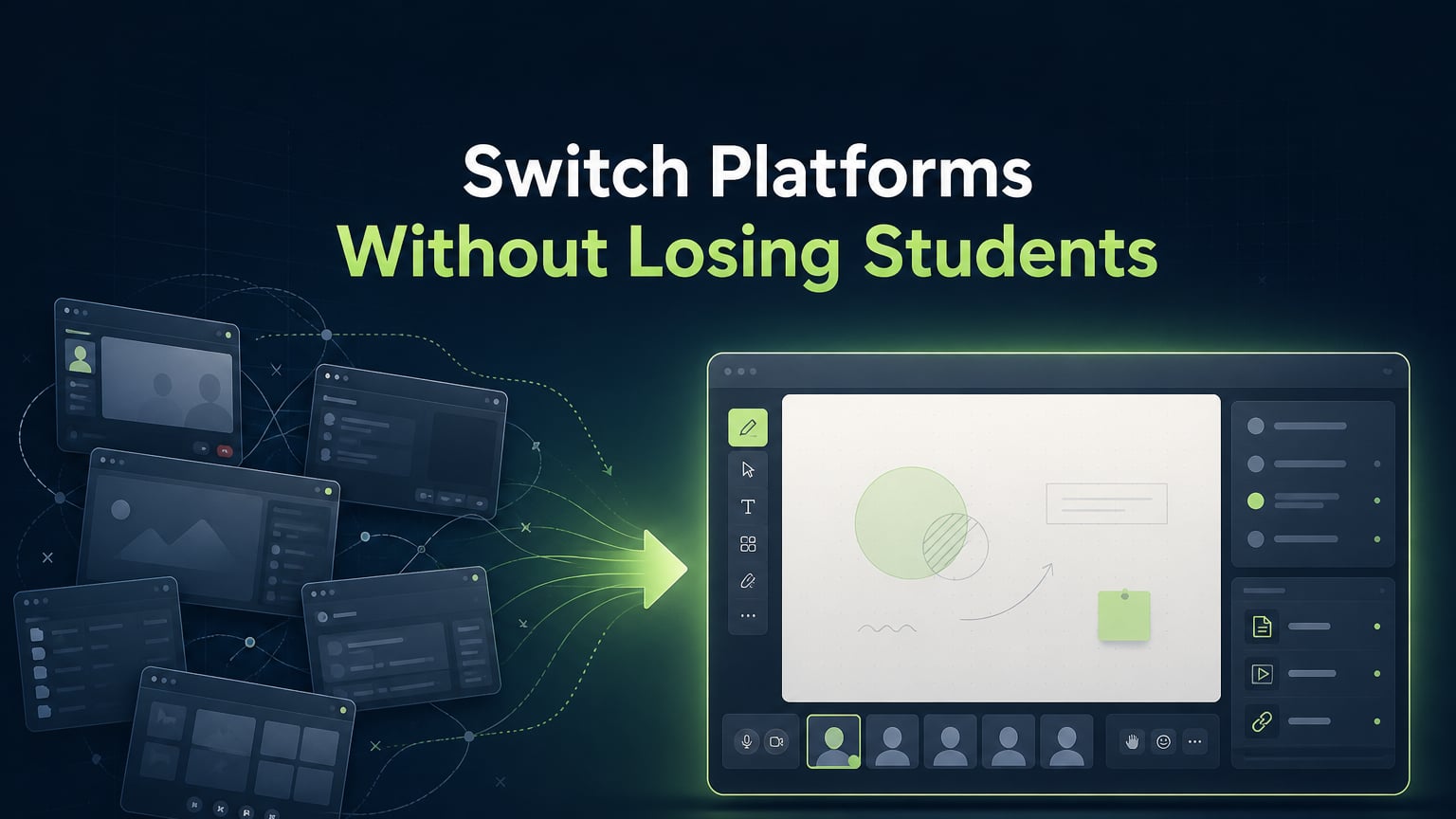
Zoom Process: Click Link ➔ Open App Prompt ➔ Download/Update ➔ Join Meeting ➔ Wait for Screen Share
Class Spot Process: Click Link ➔ Opens in Browser ➔ Lesson Begins Immediately (Board Ready)
The main exceptions are students who use old operating systems or have strict browser extensions. You can spot these issues early by rolling out the changes in stages.
Ready-to-Use Email & Message Templates
Communication is the most critical element of a smooth transition. Use these exact, field-tested templates to notify different client segments.
Message Template 1: For Tech-Comfortable Adult Students
Subject: We're moving to a new lesson space - here's what changes (very little)
Hi [Student Name],
Starting from our next lesson, I'm moving our sessions to a dedicated classroom platform designed specifically for one-to-one teaching.
For you, the process is practically identical: instead of a Zoom link, I'll send you a new link before our class. You just click it, and it opens directly in your web browser-no app download or account creation needed.
The new space keeps our whiteboard, reference files, and lesson notes in one organized place so we don't have to switch between multiple tabs.
Looking forward to our next session on [Day/Time]!
Best regards,
[Your Name]
Message Template 2: For Parents of Younger Students
Subject: Learning environment update for [Child's Name]'s lessons
Hi [Parent Name],
I wanted to share a quick update regarding [Child's Name]'s upcoming online sessions. I am upgrading our learning setup from Zoom to a dedicated online teaching platform built specifically for tutoring.
Everything regarding the teaching itself stays the same—same schedule, same curriculum focus, and same personalized approach.
The only adjustment is the lesson link: instead of Zoom, I will send a link that opens directly in any standard internet browser. [Child's Name] will not need to download software or set up a profile.
If you have any questions, feel free to reply to this message!
Best regards,
[Your Name]
Message Template 3: For Tech-Anxious Students
"I'm going to try something new for our next session-a simple browser link instead of Zoom. It's actually easier than Zoom because you just click it and we're in. I'll send it to you a day early so you can test it. If there are any connection issues, we can jump back on Zoom for that lesson. No stress at all!"
What to Expect During the First 2 Lessons
Minor adjustments during the first session are completely normal and do not indicate technical failure. Here is how to navigate common early observations:
| Observed Phenomenon | How to Handle It Smoothly |
|---|---|
| Student takes 30s longer to join | They are orienting to a new layout. By lesson two, joining takes less than 15 seconds. |
| Tutor navigates the board tentatively | Expect spatial adjustment. Board navigation feels second-nature by the end of lesson two. |
| Student says: "Oh, this looks different" | Treat as an observation, not a complaint. Reply: "Yes! It keeps all our work on one board. Let's start." |
Technical Support Note: If a student has video lag or audio problems, start with basic troubleshooting like refreshing the browser tab or checking hardware settings. If the problem continues, contact platform support instead of leaving the platform right away.
What Remains Unchanged When You Leave Zoom
When switching to new teaching tools, tutors often worry about losing control over important parts of their teaching. But in fact, that's not the case.
- Your teaching relationship stays the same. Trust comes from clear communication, good teaching, and personal connection, not from the logo of a video platform.
- Your materials and curriculum move over right away. PDFs, worksheets, vocabulary lists, and practice problems all work smoothly in an interactive browser.
- Your lesson structure stays in place. Warm-ups, guided instruction, independent practice, and wrap-ups all run smoothly without any problems from the software.
- Your value as a teacher becomes even clearer. When students enter a ready-to-go, branded classroom instead of a plain video call, you stand out as a skilled professional.
The "Lesson Three Effect": Reaching Frictionless Teaching
Tutors who make it through this transition often notice a clear turning point by Lesson 3.
At this stage, you stop thinking about the software. Lessons feel smooth, materials appear right away, students respond instantly, and you can assign homework in the workspace before you log off.
You no longer need to juggle multiple browser tabs, copy and paste whiteboard links, or ask if students can see your screen. You just teach.
Start Your Transition Risk-Free Today
Upgrading your online tutoring business doesn't require complex technical migration—just a clear, step-by-step process.
Class Spot is completely free to start, requires zero downloads for students, and allows you to set up your first professional lesson in under two minutes.
Frequently Asked Questions
How do I move my students from Zoom to a new tutoring platform?
It helps to switch platforms gradually over two or three weeks. Try the new platform with one student first. Next, move students who are comfortable with technology. After that, support younger students or anyone who feels unsure about new tech. Let everyone know about the change early with a clear email.
Will my students be confused if I change platforms?
No. Modern tutoring platforms like Class Spot work right in internet browsers. Students just click a link to join, without needing to download apps, install plugins, or create accounts. If you let students know ahead of time, confusion should be minimal.
How do I tell my students or parents that I am switching from Zoom?
Send a short message 24 to 48 hours before the lesson. Explain what will change, like a new link, and what will stay the same, such as lesson content, timing, and quality. Make it clear that no app downloads or passwords are needed.
Is switching from Zoom to a dedicated virtual classroom difficult?
Switching is easy because browser-based platforms do not need any setup. The main challenge is keeping your schedule organized during the change. Moving students in small groups each week helps reduce risk and builds your confidence.
What should I do if a student has technical issues during the switch?
Keep Zoom as a backup for the first lesson if there are problems. Most early issues come from browser permission pop-ups for the camera or microphone, or from using an old browser version. These are usually fixed by refreshing the page.