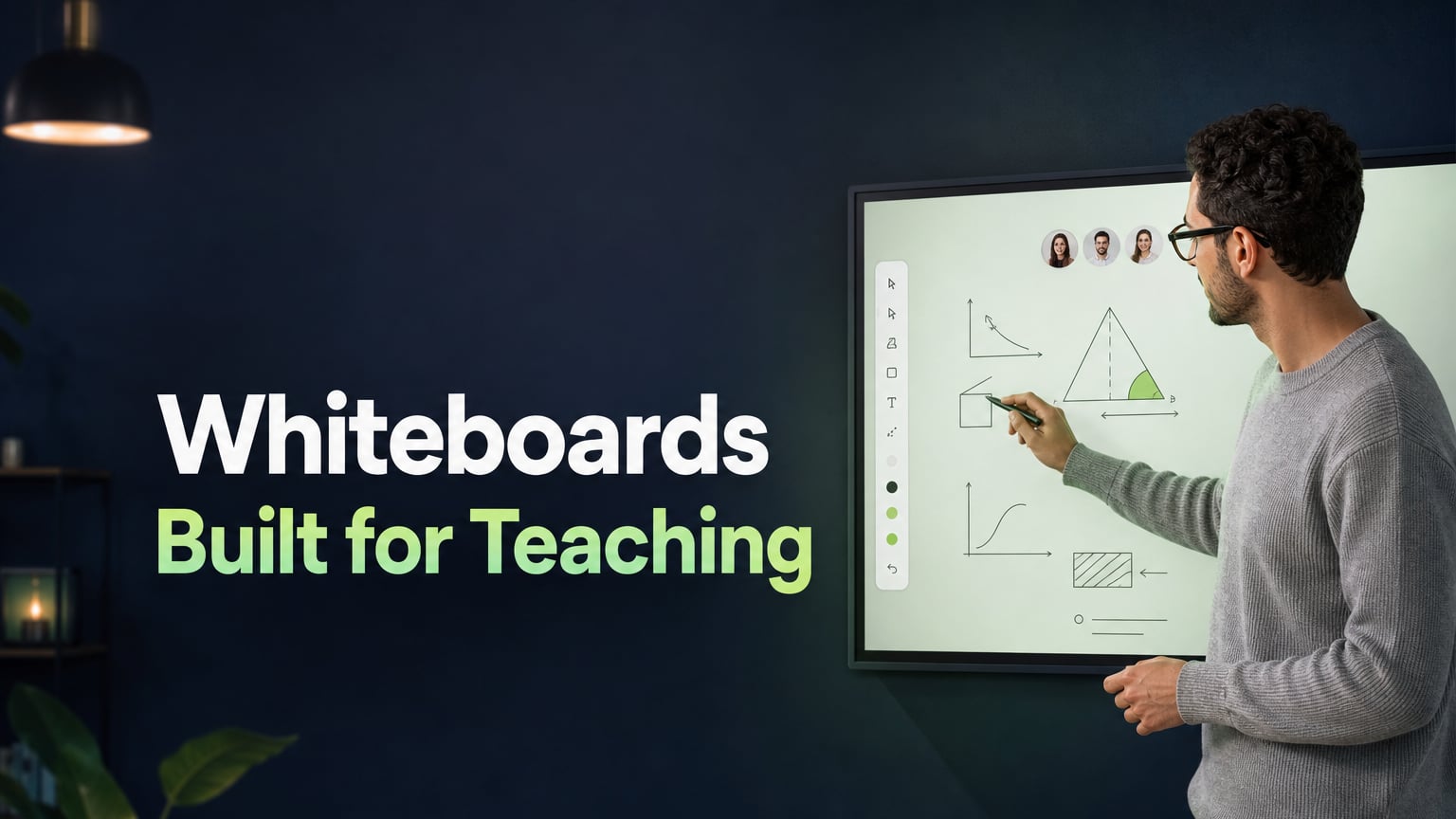
An online whiteboard used for teaching is a shared digital writing surface that lets a tutor and a student write, draw, and annotate together during a lesson. It differs from general-purpose collaboration whiteboards in one important respect: it is designed with structured instruction in mind, not team brainstorming.
The article explains what a teaching whiteboard is, the elements it needs to be effective, and what takes place in a lesson when the appropriate tool is used.
What Is an Online Whiteboard for Teaching?
An online whiteboard for teaching is a shared space where both the teacher and student can write at the same time during a lesson. It takes the place of a classroom board, so you can work through examples, draw diagrams, correct mistakes, and do activities together in real time online.
A teaching whiteboard is different from a regular collaboration whiteboard in a few key ways:
- It is meant for just two people, the tutor and the student, instead of a large group.
- It is built for teaching, so you can show your work, mark mistakes, and build understanding step by step.
- It should work within a video call, so you do not need to open a separate window.
- It saves each student's boards, making it easy to keep a record of lessons.
- The student can join without needing to create an account or install any software.
What Does an Online Teaching Whiteboard Need to Include?
A functional online whiteboard for teaching requires seven core capabilities. Any tool missing these creates friction that directly reduces lesson quality.
- Shared writing — both tutor and student write on the same board in real time. A board where only the teacher writes is a display, not a whiteboard.
- Pencil tool — for handwriting equations, diagrams, and free-form annotation, using a mouse or graphics tablet.
- Geometric shapes — accurate circles, triangles, squares, lines, and arrows for geometry, science diagrams, and visual explanations.
- Eraser — to remove part of a worked example and ask the student to complete it. This converts passive observation into active practice.
- Colour palette — minimum 4–6 colours for structuring worked examples: main working, key values, errors, and teacher annotations.
- Board saving per student — sessions must be saved automatically so previous lesson boards are accessible for progress review.
- Zero-friction student access — the student joins by clicking a link in any browser. No account, no download, no installation.
For maths tutoring specifically, two additional features are required:
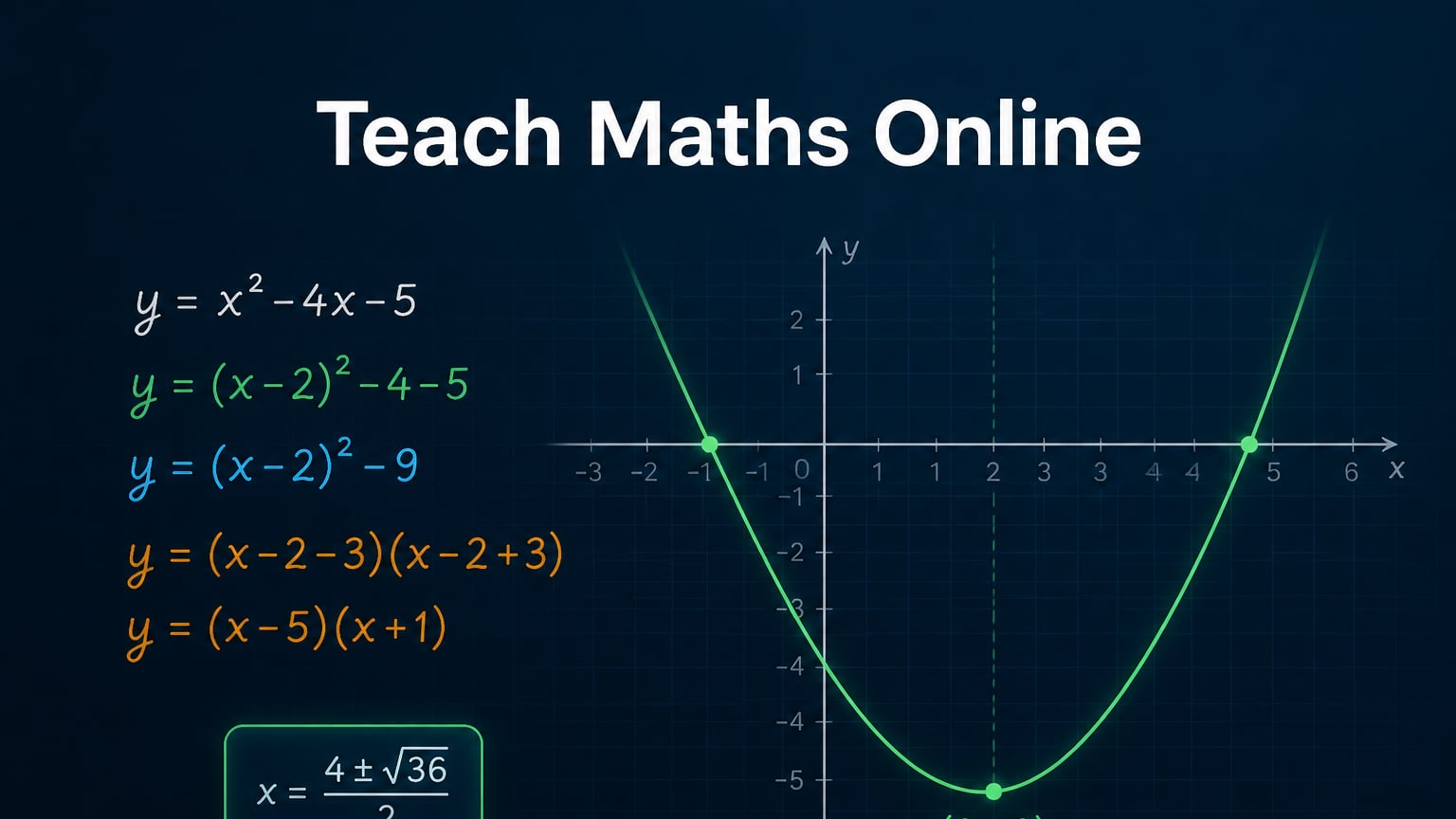
- Graph builder — creates mathematically accurate graphs (quadratics, trigonometric functions, coordinate geometry) without freehand mouse drawing, which produces inaccurate shapes.
- Formula writing tool — renders mathematical expressions in proper notation (fractions as fractions, exponents as superscripts), matching the format students encounter in textbooks and exams.
Why Does the Whiteboard Need to Be in the Same Tab as the Video Call?
When the whiteboard is in a different tab from the video call, lesson momentum is lost each time the tutor switches between them.
Every time the teacher switches tabs during a lesson, there is a noticeable pause. Instead of learning, the student ends up watching the teacher navigate. In a 60-minute session with five or six tool switches, these interruptions add up and show the student that the lesson environment is not fully integrated.
An integrated teaching environment, where the video call and whiteboard are in the same browser window, removes this friction completely. The lesson can begin as soon as the student arrives, since there is nothing extra to open, find, or switch.
This is the core structural difference between a teaching-specific whiteboard and a collaboration tool adapted for teaching. See teaching without switching between five apps for a full breakdown of how tool fragmentation affects lesson quality.
What Changes in a Lesson When the Whiteboard Is Built for Teaching?
1. The student becomes an active participant, not just an observer. With a shared board ready to use, you can quickly let the student take over. They write the next step, fill in missing parts, or mark their own mistakes. This is what makes an online class truly interactive: the student creates, not just reacts.
2. Progress is easy to see. You can pull up boards from past sessions with a single click. Showing a student their work from six weeks ago next to today's board highlights their growth in a way that reports can't. This is a powerful way for online tutors to keep students engaged.
3. The lesson starts without setup. A pre-loaded board — with the session goal already written and the first task already visible — means the lesson begins the moment the student joins. There is no setup phase, no searching for documents, no "just a moment."
4. The lesson looks and feels professional. When everything is prepared and organized, it shows you are ready before teaching even starts. Students and parents often judge a tutor's professionalism by what they see when they join. A well-structured, ready-to-go environment sets a strong first impression.
For tips on using a whiteboard effectively, check out how to use a virtual whiteboard to keep students engaged.
Class Spot's Interactive Whiteboard for Teaching
Class Spot's interactive whiteboard was developed in collaboration with experienced teachers for live 1-on-1 and small-group tutoring.
It includes all seven required capabilities listed above:
- Labelled teacher and student cursors (so both parties always know who is pointing at what)
- 10-colour palette
- Pencil tool (mouse or graphics tablet, adjustable line thickness)
- Geometric shapes: circle, oval, square, triangle, line, arrow
- Text tool with multiple fonts and sizes, jointly editable
- Eraser for partial removal of worked examples
- Tracking tool showing where the student's cursor and focus are on the board
- Board scale for placing multiple lesson segments on one canvas
- Save as template (reusable across multiple students)
- Download the board (send to student after the lesson)
- Action control (limit student board actions for younger learners)
- Media upload: PDF, PPT, JPG, PNG, MOV, MP3, WAV directly onto the board
For maths tutors: the board includes a built-in graph builder (mathematically accurate graphs without leaving the lesson) and a formula writing tool (proper mathematical notation for expressions, fractions, and equations).
The whiteboard and video call are in the same tab. The student joins by clicking a link in any browser: no account or download required. Boards are saved automatically per student.
The complete whiteboard is available on the free plan, with no lesson limit and no student limit.
Summary
| What | Answer |
|---|---|
| What is an online whiteboard for teaching? | A shared, real-time digital writing surface for tutor and student during a live online lesson |
| What must it include? | Shared writing, pencil, shapes, eraser, colours, board saving per student, zero-friction student access |
| What additional features does maths need? | Built-in graph builder and formula writing tool |
| Why must it integrate with the video call? | Tab-switching between tools breaks lesson momentum and signals disorganisation |
| What changes when the whiteboard is right? | Student produces more, progress is visible, lessons start instantly, setup looks professional |
| Which platform provides all of this? | Class Spot — free plan, all features included, student joins by browser link |
Frequently Asked Questions
What is an online whiteboard for teaching?
An online whiteboard for teaching is a shared, real-time digital canvas where a tutor and student write, draw, and annotate together during a live lesson. It replaces the physical classroom board and must allow both participants to write simultaneously.
What features should an online teaching whiteboard have?
Seven features are essential: shared real-time writing for both tutor and student, a pencil tool, geometric shapes, an eraser for gap-fill exercises, a colour palette, automatic board saving per student, and zero-friction student access via browser link. Maths tutoring additionally requires a graph builder and a formula writing tool.
Why does a teaching whiteboard need to be in the same tab as the video call?
Because switching tabs during a lesson interrupts momentum, signals disorganisation, and reduces the time available for actual teaching. An integrated environment — where whiteboard and video call share one window — means the lesson runs without interruption.
Is a whiteboard necessary for online tutoring?
For any subject involving written working, diagrams, or visual explanation — maths, sciences, languages, most school subjects — yes. A video call without a whiteboard limits the lesson to spoken exchange, removing annotation, error correction, and collaborative writing that make instruction effective.
What is the best free online whiteboard for teaching?
Class Spot provides a complete teaching whiteboard on its free plan: pencil, shapes, eraser, 10-colour palette, board saving per student, integrated video call, graph builder, formula tool, and student access by browser link with no account required. There is no time limit and no student limit on the free plan.