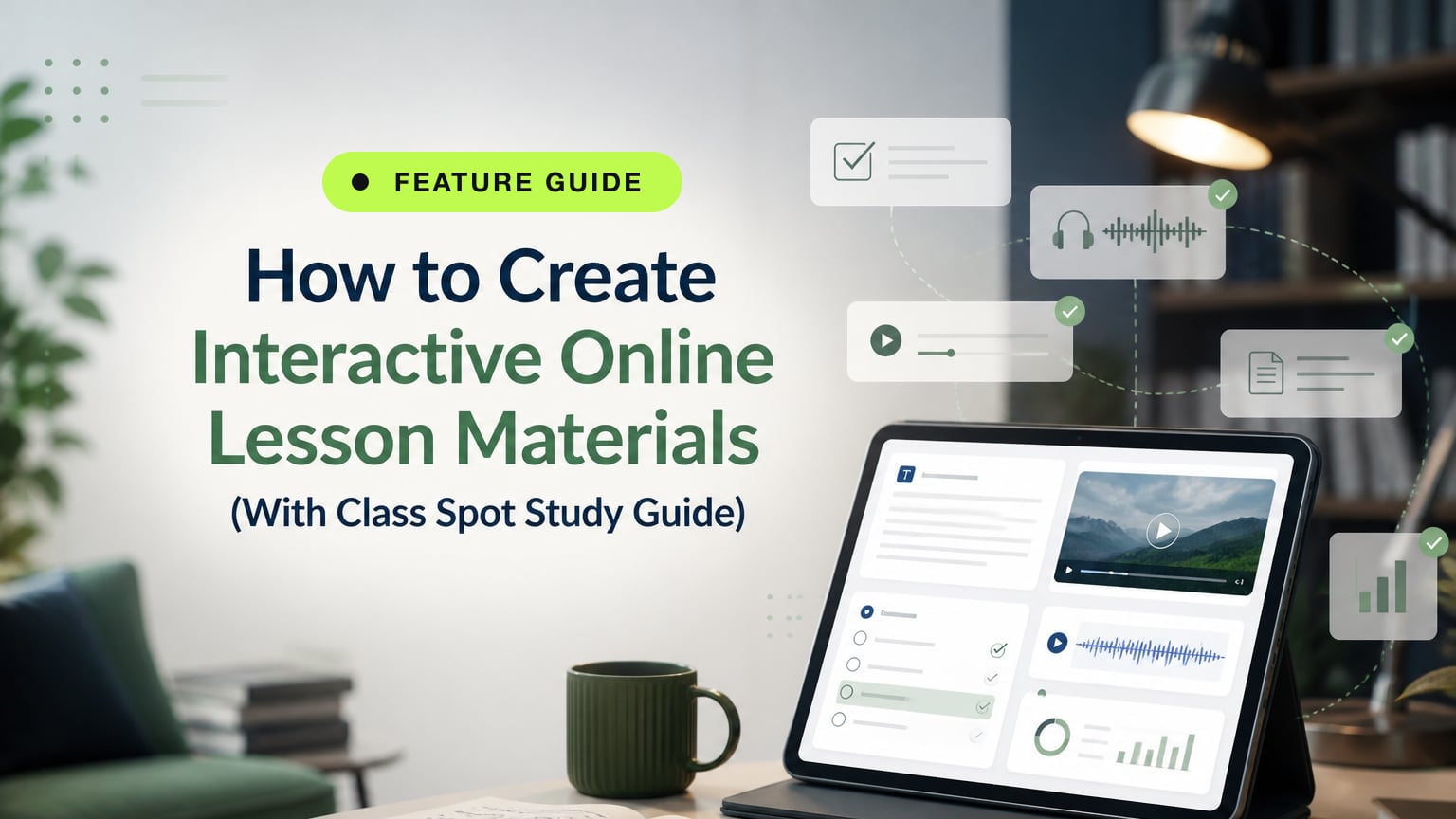
How to Create Interactive Online Lesson Materials (With Class Spot Study Guide)
Interactive online lesson materials are digital resources that tutors create ahead of time. These materials bring together texts, tasks, quizzes, audio, and video in one organized document. This way, students take an active role in learning instead of just receiving information.
Most online tutors use a mix of Google Docs, slides, and PDF files, which they send by email or chat. Each format needs its own tool, its own tab, and a separate step to send before the lesson even begins. This creates a scattered experience that makes preparation slower and adds setup hassles that students notice right away.
Class Spot Study Guide brings everything together in one place. It offers a structured, interactive lesson document that stays within the platform, opens right on the student's dashboard, and can become homework with automatic checking. Students and tutors never have to leave the classroom.
This article will show you what a Study Guide is, what you can include in it, and how to use it for preparation, live teaching, and homework—all in one smooth process.
What Is a Study Guide in Online Teaching?
A Study Guide in Class Spot works like an interactive textbook chapter enriched with media and tasks that a tutor builds once and uses across lessons, students, and subjects.
Unlike a PDF or slide deck, a Study Guide is not static. It contains interactive elements the student responds to directly: answering quiz questions, completing tasks, interacting with embedded audio or video. The tutor sees the results without chasing the student for a submitted file.
There are three ways to use a Study Guide:
- During a live lesson, the tutor and student can go through the guide together on screen.
- As homework, the guide can be assigned after the lesson and answers are checked automatically.
- As a self-study resource, the guide can be shared to the student's dashboard for them to review on their own.
What Can You Put Inside a Class Spot Study Guide?
A Study Guide lets you include texts, tasks, images, video, audio, quizzes, and polls, all in one interactive document.
Verified content types:
- Text blocks: explanations, reading passages, grammar rules, and vocabulary lists
- Tasks and exercises: structured activities that students complete directly in the Guide
- Images: diagrams, infographics, and visual prompts for speaking or writing tasks
- Video: embedded video content for comprehension or demonstration
- Audio: listening exercises, pronunciation models, and dialogue recordings
- Quizzes: questions with answers that are checked automatically when students submit their homework
- Polls: opinion questions or comprehension checks used during a live session
- Built-in timer: set time limits for tasks, quizzes, or discussion segments to help keep the session on track
Everything is included in one document, so students do not need to open separate files or follow links to other platforms.
How to Create Your First Study Guide
Making a Study Guide in Class Spot is as quick as creating a Google Doc, but you get an interactive, reusable lesson resource that you can track, instead of just a static file.
- Log in to your Class Spot account and click on Materials.
- Start a new Study Guide. Add a title and pick the subject or student it's meant for.
- Add a text block. Here, you can write a reading passage, an explanation, or a vocabulary list.
- Add an exercise by placing a task right below the text section it relates to.
- Include media by adding audio, video, or images wherever they help explain the content.
- Add a quiz or poll by putting comprehension questions at important spots in your guide.
- If you want, set a timer to give students a time limit for certain tasks or quiz sections.
- Save your Study Guide to a folder. You can organize it by subject, student, or lesson topic so it's easy to find later.
Your Study Guide is now ready. You can use it in a live lesson, assign it as homework, or share it to the student's dashboard for them to review on their own.
How to Use a Study Guide During a Live Lesson
In a live lesson, a Study Guide takes the place of a shared screen, PDF, and external worksheet. Everything the student needs is gathered in one place.
At the start of the session, open the Study Guide on the shared screen. The student can follow along in their own account. Rather than describing slides or waiting for files to download, the student views the same interactive document and can respond to tasks right away.
Use the built-in timer to organize the lesson into segments. For example, say, "You have 4 minutes to complete this reading task." This helps keep the session on track without needing to watch the clock yourself.
Polls during the lesson let students answer comprehension questions without interrupting the flow by speaking. This helps keep students engaged and checks their understanding without breaking momentum. For a full session structure that uses Study Guide materials at each stage, see how to structure an online lesson.
How to Turn a Study Guide Into Homework
You can assign a Study Guide as homework in just one step, and the system will check the answers for you.
Once the live lesson ends, you can assign the Study Guide as homework right from Class Spot. Students will find the task in their account with a clear deadline. When they finish, the system checks their answers automatically. You can view each student's progress and results on your dashboard, so you don't need to collect files, read responses by hand, or send feedback one by one.
This feature is especially helpful for tutors with many students, since reviewing homework by hand takes a lot of time. With automatic checking, you can skip this step after each lesson.
You can also see which questions students got right and where they made mistakes. This information helps you plan your next session, since the results dashboard highlights what you should review without relying on your memory.
How to Reuse a Study Guide Across Multiple Students
Once you create a Study Guide, you can use it with any student who is working on the same topic. There is no need to rebuild the material each time.
Save each Study Guide in a folder sorted by subject or level. When another student needs the same topic, just open that Guide again. Each student's results are kept separate, so Student A's quiz answers will not show up in Student B's record.
This is the main reason it saves time to build materials inside the platform instead of using outside documents. For example, sharing a Google Doc with five students creates five versions, five email threads, and five files to manage. Using a Study Guide with five students means you have one document, five separate results, and no extra files to track.
In Class Spot, you can organize folders by subject, student, or lesson order. If you delete something by mistake, it goes to the archive for 30 days before it is permanently removed, so you can recover it if needed.
If you want to make your materials more engaging for students, check out tips on making online classes interactive. The same ideas for interactivity work in a Study Guide just like they do in a live class.
Summary
| Feature | What it does |
|---|---|
| Texts | Reading passages, explanations, vocabulary lists |
| Tasks and exercises | Interactive activities students complete inside the Guide |
| Images / Video / Audio | Media embedded directly into the lesson document |
| Quizzes | Questions with automatic checking when submitted as homework |
| Polls | Live comprehension checks during a lesson |
| Built-in timer | Time limits for tasks and quiz segments |
| Homework with auto-check | Assign after lesson, answers checked automatically, results on dashboard |
| Student dashboard | Study Guide appears directly in the student's account |
| Folder organisation | Group by subject, student, or lesson sequence |
| Reuse across students | One Guide, individual results tracked per student |
Build your first Study Guide free — no credit card required
Frequently Asked Questions
So what constitutes a Study Guide in the context of online teaching?
In Class Spot a Study Guide is an interactive digital lesson put together from texts, tasks, images, video, audio, quizzes, and polls. The tutors produce it once and then use it in live lessons, assign it as homework with automatic marking, or provide it for self-study on the student's dashboard.
What is the method for producing interactive online lesson materials?
With Class Spot you are able to create a Study Guide by combining text blocks, interactive exercises, media such as video, audio, and images, as well as quizzes and polls, all within a single document. You can include a timer for the tasks, save the guide by subject or by student, and use it either in live lessons or as homework. The answers are automatically checked when the students submit them.
Can a Study Guide be turned into homework that is automatically checked?
Yes. Following a live lesson, you can assign the Study Guide as homework straight from Class Spot. As soon as the student has finished the assignment, the answers will be checked automatically and the tutor will be able to see each student's completion status and results from the dashboard — there being no need for manual grading.
How do online tutors manage to use the same lesson materials with multiple students?
In Class Spot, if a Study Guide has been saved to a folder it can be opened by any student who is studying the same topic. The responses and quiz results of each student are kept separately, meaning that a single document can be used by many students without the need for separate file versions or email conversations.
The best method for producing interactive digital worksheets for use in online tutoring
The best method for producing interactive digital worksheets for use in online tutoring is to create the lesson materials within the platform that you use for teaching, rather than preparing them in separate external documents which have to be shared. With Class Spot Study Guides all different types of content—text, exercises, media, and quizzes—are combined into a single interactive document that opens on the student's dashboard, can be used during the live session, and can be converted into automatically marked homework in one step.